Microsoft© Windows© has a feature that allows you to select programs to start automatically whenever your computer powers on, so they are always available in the background. These Windows startup programs can be valuable for programs you always use. While this can be convenient for frequently used applications, unnecessary programs can sneak into your Startup folder during manufacturing, software installations, or without your knowledge. Over time, these programs can bog down your system.
This guide explains how to manage and remove startup programs to improve your computer’s performance.
How apps in the Startup folder affect your computer
If there are a lot of programs in your Startup folder, they can slow down your computer’s initial power on. Having several apps running in the background also fills up your computer’s memory. This can cause slowdowns when switching between programs.
Learn more about how memory works.
Windows has changed how it manages startup programs over the years. Older versions of Windows, from Windows 7 and earlier, managed startup applications via shortcuts in a special Startup folder.
Windows 8, 10, and 11 now manage startup programs from the system settings, but the Start-up folder still exists.
How to disable programs in Windows 10 and 11
The correct way to manage startup applications in Windows 10 and 11 is through the system settings, but you can still access the Start-up folder if you know where to look.
Via system settings:
Right-click on the Windows Start button, and select Settings.
Select Apps from the left-hand pane of the Settings window.
On the right, select Startup from the bottom of the list.
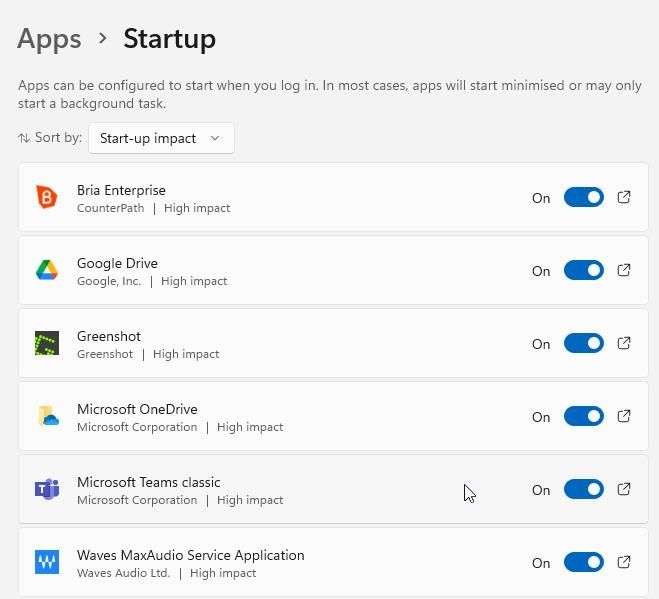
You will see a toggle button to the right of each application. Turn these off if you don’t need them to start automatically.
The list of Apps also includes a handy guide to the impact each program has on your startup routine. Applications which have a high impact, and could make your computer feel slow on startup, will be labelled. These apps could be a good place to start if you are looking to improve system performance. You can sort the list by Start-up impact with the control at the top of the window.
Apps – Startup window image
Via the Start-up folder:
The Start-up folder is buried deep in the user’s User Data folder. Here’s how to find it quickly.
Press the Windows + R keys to bring up the Run command dialogue.
Type “shell:startup” into the Run window and click OK.
A window will open showing shortcuts to startup applications.
Delete shortcuts to any applications you don’t need.
You might notice some applications exist in both places, so you might need to remove the application from each of them if it still loads at startup after removing it from one place.
How to disable Startup programs in Windows 8 and later
In Windows 8 and later, use the following procedure to remove programs in the Startup folder.
1. Go to Task Manager by clicking the Windows icon, select the settings icon (gear symbol), then type Task Manager in the search box.
2. Select the Startup tab. Highlight any progam you don’t want to start automatically, then click Disable.
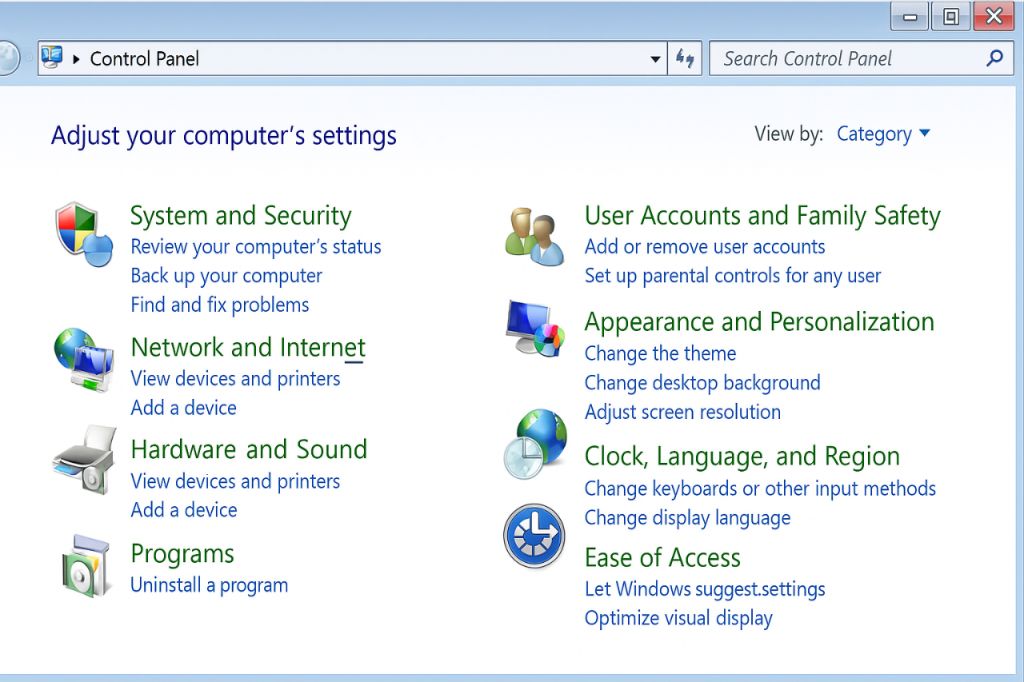
This will only prevent programs from starting automatically. To remove the programs entirely, go to Control Panel, select Programs, and Uninstall a program. You can then permanently delete any apps you no longer want.
How to disable programs in Windows 7 and earlier
To remove programs from the Startup folder for Windows 7 and earlier, you might need to show your hidden files first.
Open Windows Explorer and click the drop-down menu next to Organize.
Select Folder and search options.
Click the View tab.
Under Hidden Files and Folders, select Show Hidden Files, Folders, and Drives.
Hidden Files and Folders dialog box
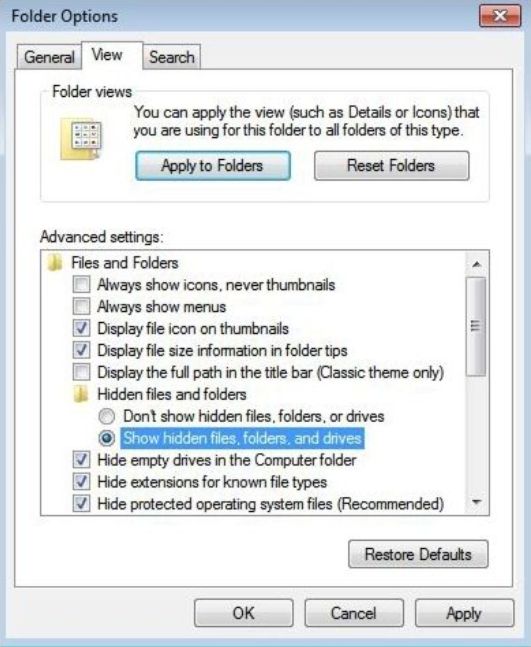
How to show and remove hidden files on your computer
To remove the programs, follow these steps:
Open Windows Explorer and select your drive, usually C:
Under Users, expand the folders under your username
Select AppData, Roaming, Microsoft, Windows, Start Menu, Programs, Startup
The programs that are set to start automatically will be listed. If there are apps that you don’t want to start when you turn on the computer, right-click on the program and click Delete to remove the shortcut (this will not completely delete the program).
If you have removed apps from your Startup folder that you don’t want at all, such as adware, go to Control Panel, select Programs, and Uninstall a program. You can then remove any apps you don’t want on your computer.
Uninstall a program selection image
 KAZIOS
Leave a comment